Desktop GUI
The methodatlas-gui module is a professional Swing desktop application for interactive analysis and tag review. It targets security engineers and auditors who need to examine, override, and apply AI-suggested @Tag annotations without using the command line.
Overview
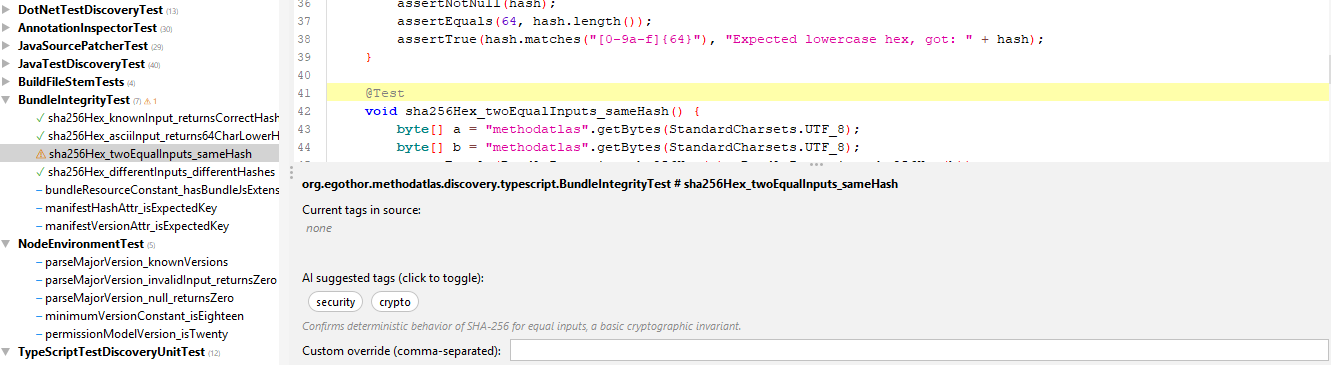
The window is divided into the following areas:
- Left — results tree (
ScanPanel), grouping discovered methods by class with colour-coded status icons - Top-right — syntax-highlighted source editor (
EditorPanel, RSyntaxTextArea) with line numbers and code folding - Bottom-right — tag editor (
TagEditorPanel) with the current method's existing tags, AI-suggested tag chips, a custom override field, and staging buttons - Lower strip — an activity panel (
ActivityPanel) that streams the live JUL log of the current run (scan progress, AI provider responses, write-back notices) and a status bar (StatusBar) showing the current scan run id, active AI profile, and aggregate counts (discovered / staged / saved)
Results tree icons
| Icon | Colour | Meaning |
|---|---|---|
⚠ |
Orange | AI suggests tags not yet present in source — needs review |
✓ |
Green | Source tags satisfy the AI suggestion — nothing to do |
– |
Blue | AI classified this method as not security-relevant |
○ |
Grey | No AI data yet |
✎ |
Orange | Changes staged but not yet written to disk |
Tag editor buttons
Three buttons appear in the bottom-right of the tag editor panel. Understanding the difference between them is important:
| Button | What it does |
|---|---|
| Stage Selection | Stages exactly the tags that are currently toggled on in the AI chip row, plus any text entered in the custom override field. Use this when you want to cherry-pick from the AI suggestions or add your own tags. |
| Accept All AI Tags | Stages every tag the AI suggested for this method, regardless of which chips are toggled. Use this for a one-click accept when you agree with the full AI recommendation. |
| Unstage | Discards any staged (pending) changes for the current method without touching the source file. |
Nothing is written to disk until Save All Changes
Both staging buttons only mark the method as pending — no file I/O happens. The toolbar Save All Changes button batches all staged patches per file into a single write, which prevents line-number drift when multiple methods in the same class are modified.
Languages without a SourcePatcher cannot be written back
The Stage Selection and Accept All AI Tags buttons are disabled when the currently selected method lives in a language whose discovery plugin does not ship a SourcePatcher SPI implementation. At the time of writing, source write-back is available only for Java/Kotlin and C#; TypeScript, Go, Python, PowerShell, ABAP, and COBOL are discovery-only. A tooltip on the disabled buttons explains the limit, matching the CLI behaviour described in Discovery plugins — Source write-back.
Staged workflow
- Run analysis (▶ Run Analysis) — the tree populates incrementally; the first method needing review is auto-selected when AI finishes.
- For each
⚠method: review the AI chip suggestions, toggle individual chips on/off, optionally add custom tags, then click Stage Selection or Accept All AI Tags. - The method icon changes to
✎and the tag row in the tree shows the pending tags. - When all desired methods are staged, press Save All Changes in the toolbar. All staged methods are patched in one pass per file and the editor reloads with the updated content.
Audit trail
Every Save All Changes writes three artefacts into .methodatlas/ inside the scanned directory (audit schema version 3; see Audit Trail):
methodatlas-YYYYMMDD-HHmmss.csv— immutable timestamped record of every patched method: AI suggestion, user decision, thetag_ai_driftsecurity-classification drift (the same definition as the CLI), andtags_added/tags_removedrecording the reviewer's tag changes relative to the AI suggestion. Uses the CLIDeltaReportcolumn schema extended with the two delta columns and, as the final column,ai_taxonomy_version(the built-in default taxonomy version the AI suggestion was produced under; blank when the row has no AI suggestion);DeltaReportresolves columns by name and reads it unchanged.manifest.sha256— SHA-256 of every evidence CSV and ofoverrides.yaml(sha256sumformat) so the audit files are tamper-evident by comparison; hash only, not signed. The CSVcontent_hashcolumn carries the per-class SHA-256 the CLI emits, and a same-second collision gets a-Nfile-name suffix instead of overwriting.overrides.yaml— cumulativeClassificationOverrideYAML; pass it to a future CLI run via-override-file .methodatlas/overrides.yamlto reproduce the same decisions without re-invoking the AI.
The note field in each YAML entry carries "Reviewed <ISO-8601> by <operator>" when an operator name is configured in Settings → Audit.
Settings
Open ⚙ Settings to configure:
- AI Profiles — named provider configurations; switch the active profile from the toolbar combo box without opening Settings
- Discovery Plugins — enable or disable individual language plugins per scan
- Audit — operator name written into audit records
- Appearance — theme (IntelliJ Light / Flat Dark / Flat Light / Darcula); takes effect on next launch
Build and run
The GUI is bundled into the root distribution together with the CLI — there is a single lib/ directory shared by both entry points, and the ANTLR grammar-compiler JARs are stripped from lib/ just as they are for the CLI.
# Build the combined CLI + GUI distribution
./gradlew installDist          # install to build/install/methodatlas/

# Or build the zip archive
./gradlew distZip              # produces build/distributions/methodatlas-<version>.zip

# Run the GUI start script (Unix)
build/install/methodatlas/bin/methodatlas-gui

# Run the GUI start script (Windows)
build\install\methodatlas\bin\methodatlas-gui.bat

# Run directly from Gradle during development
./gradlew :methodatlas-gui:run
Settings are persisted to %APPDATA%\MethodAtlasGUI\settings.json on Windows and
$XDG_CONFIG_HOME/methodatlas-gui/settings.json (or ~/.methodatlas-gui/settings.json) on Linux and macOS.