

Workspace Setup
Workspace Setup is the guided starting point for every SWAO engagement. It walks you through seven steps -- from creating the workspace folder to connecting Claude Desktop -- and leaves you with a fully configured environment ready to run your first assessment.
Access it from the TUI main menu by pressing 1, or by running swao from your workspace directory and selecting Workspace Setup.
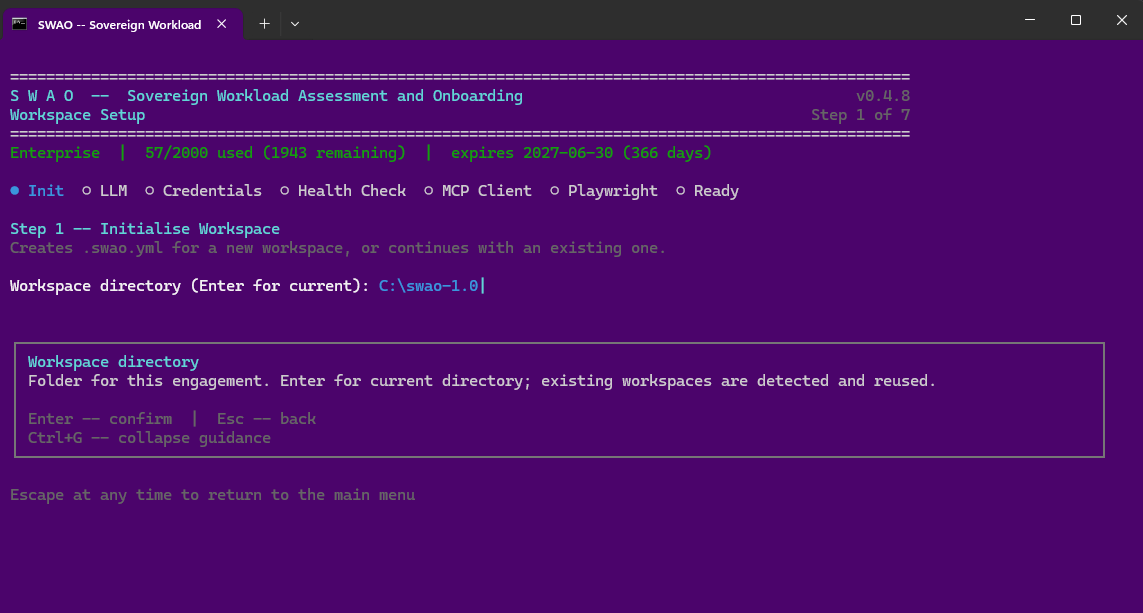
What it does
A workspace is a single folder that contains everything SWAO needs for one engagement: the compliance framework catalogues, your application source references, ingested context documents, assessment outputs, and the Power BI export bundle. The Setup wizard creates and configures this folder in one guided flow.
The seven steps
Step 1 -- Initialise Workspace
Creates the .swao.yml configuration file for a new workspace, or reconnects to an existing one. Enter the directory path (or press Enter to use the current directory). Existing workspaces are detected automatically so you can continue where you left off.
Step 2 -- LLM Provider
Configures the large language model SWAO uses for its analysis passes. Supported providers:
| Provider | Notes |
|---|---|
| Anthropic Claude | Default. Recommended for sovereign workloads (zero-retention endpoint available). |
| Azure OpenAI | Use for deployments inside an Azure tenant with EU data residency. |
| OpenAI | GPT-4o and above. |
| Ollama (local) | Fully air-gapped option -- no data leaves the machine. |
You will need an API key for cloud providers. Ollama requires a locally running Ollama server.
Step 3 -- Credentials
Stores API keys and repository credentials securely. Credentials are written to the workspace credential store (never to .swao.yml directly) and are resolved at runtime. This step also covers VCS authentication for private repositories that SWAO will clone during assessment.
Step 4 -- Health Check
Runs the full 11-probe Health Check automatically at the end of setup to confirm every component is working. Any probe that reports WARN or INFO includes guidance on how to resolve it. You can re-run Health Check at any time from menu item 2.
Step 5 -- MCP Client
Configures the SWAO MCP server entry in Claude Desktop so that Claude can call SWAO assessment tools directly from a conversation. SWAO writes the server configuration automatically -- you just confirm the Claude Desktop path.
Step 6 -- Playwright
Verifies that Playwright and Chromium are installed. Playwright is required only for PDF report generation and for the HTML Editor publication path. If Playwright is absent, SWAO skips those steps gracefully and still produces all other outputs.
Step 7 -- Ready
Confirms the workspace is fully configured and displays the next recommended action (usually "Run Assessment" or "Health Check").
After setup
Once setup is complete your workspace contains:
.swao.yml-- the workspace configuration file. Open this to review or change any setting.wsp/inputs/catalogs/community/-- the installed compliance framework YAML files.wsp/templates/powerbi/-- the Power BI.pbittemplate files for single-app and portfolio reporting.apps/<app-id>/ingestion/-- the drop folder for context documents (architecture reviews, CMDB exports, workshop transcripts).
Re-running setup
You can re-run Setup at any time. It detects existing configuration and offers to update individual steps without overwriting the rest. This is useful when you need to rotate an API key, add a new LLM provider, or reconnect MCP after a Claude Desktop update.