
SWAO MCP Server Integration Runbook
Abstract
Enterprise The SWAO MCP server is part of the Enterprise edition.SWAO exposes its assessment capabilities over the Model Context Protocol (MCP) STDIO transport. Once registered, any MCP-compatible client (Claude Desktop, Cursor, VS Code with an MCP extension, etc.) can invoke swao_assess, swao_report, swao_health_check, and swao_challenge as native tools, and use the swao entry point to show the workflow overview screen.
This runbook covers two installation modes (binary and source), per-platform client configuration, verification, and troubleshooting.
For the short path (one install command per client, profiles, small local models and client pitfalls), see Using SWAO from an AI client.
1. Installation modes
There are two ways to run the SWAO MCP server. Choose based on whether you have the repository cloned and Node.js installed, or only the distributed binary files.
| Mode | What you have | Node.js required |
|---|---|---|
| Binary | swao-enterprise-win-x64.exe / swao-macos / swao-linux from dist-bin/ | No |
| Source | SWAO repository cloned, dist/ built | Yes (20.x) |
Both modes start the server with the same mcp subcommand. The only difference in the client configuration is the command field: the binary path directly (binary mode) vs. node pointing at dist/index.js (source mode).
2. Binary mode: placing the files
The binary distribution ships three executables. All files are found in dist-bin/ of the SWAO repository, or delivered as a release archive.
| File | Platform | Purpose |
|---|---|---|
swao-enterprise-win-x64.exe | Windows | Self-contained CLI and MCP server |
swao-macos | macOS | Self-contained CLI and MCP server |
swao-linux | Linux | Self-contained CLI and MCP server |
2.1 Windows
- Create a permanent folder for the binary, for example
C:\tools\swao\. AvoidDownloadsor any folder that may be cleared. - Copy
swao-enterprise-win-x64.exeinto that folder. - Optionally add
C:\tools\swao\to yourPATHso you can runswaofrom any terminal. This is not required for MCP.
Verify the binary works before registering it with any client:
C:\tools\swao\swao-enterprise-win-x64.exe mcp --helpExpected first line:
Start the SWAO MCP server (stdio transport). ...2.2 macOS
- Copy
swao-macosto a permanent location, for example/usr/local/bin/swaoor~/bin/swao. - Mark it executable:
chmod +x /usr/local/bin/swao- Verify:
/usr/local/bin/swao mcp --help2.3 Linux
Same steps as macOS. Recommended location: /usr/local/bin/swao or ~/bin/swao.
3. Source mode: building the dist
Skip this section if you are using the binary.
3.1 Requirements
- Node.js 20.x (
node --versionto check) - SWAO repository cloned
3.2 Build
cd packages/swao
npx tsc --project tsconfig.json
No output means the build is clean. The server entry point is at packages/swao/dist/index.js.
3.3 Verify
node packages/swao/dist/index.js mcp --helpExpected first line:
Start the SWAO MCP server (stdio transport). ...4. How the MCP server works
The client launches the SWAO process as a subprocess over standard I/O. The client and server exchange a JSON-RPC handshake, after which the client may call tools on demand. The server process stays alive for the duration of the client session.
The core workflow tools are listed below; the full list depends on the profile (section 4.3, full lists 53 tools) and swao mcp profiles prints it:
| Tool | Purpose |
|---|---|
swao | Welcome screen: workflow overview, tool list, quick-start guide. Use this as the entry point. |
swao_assess | Run a sovereignty assessment for one application (source scan, SBOM, egress, TF, crypto, LZR). |
swao_report | Generate a report from an existing assessment. Supports role views: exec, compliance, finops, migration-manager, lzr. |
swao_health_check | Health check: LLM connectivity, credential store, workspace layout, Playwright availability, licence status. |
swao_challenge | Run a stakeholder challenge session against a WSP. Five agent perspectives available. |
The swao_assess and swao_report tools require two key parameters:
app_id: the application folder name underportfolio/apps/workspace_path: absolute path to the portfolio root that contains.swao.yml(optional; not offered when the server workspace is pinned, section 4.2)
4.1 Service Portfolio Assessment tools
For a workspace scaffolded with swao service init (Design 103), the server exposes the service results directly. Read tools follow FEATURE_GATES['service-assessment'] (Community, so no gate beyond the MCP server's own licence; swao_service_export additionally requires Enterprise), return JSON, accept workspace_path (unless pinned), and cap long lists (limit / offset). Contact, phone and e-mail from the intake are reported as presence booleans only; intake note text and analyst text in research stubs are never returned. Failed, aborted and in-progress runs (run-status.json) are listed but never read.
| Tool | Purpose |
|---|---|
swao_service_portfolio | One row per application or service app from wsp/portfolio-summary.json (combined portfolio view): assessment_type, 7R verdict of application apps, TIME quadrant and reason, risk, health, evidence, assessed, wave, blast radius, end-of-life signal and date, CVE counts, KEV, site, cost. Filters: assessment_type, time_quadrant, wave, site, infra_category, operational_status, evidence, assessed, eol_signal, eol_within_months, min_risk, kev_match; sort_by risk, eol_date, fan_in or wave. |
swao_service_app | Everything about one service app: intake fields, classification, cluster, cost estimate, integrations, TIME and domain scores, per-control SWAO_APM scores (apm-score.json), latest usable run and run history, scope coverage with skipped passes, research and binary summary. For an application app of the combined portfolio view: its portfolio row and integrations. |
swao_service_research | Research stubs of one app, optionally one topic: CVE ids (capped), KEV, BSI, OSV, end of life, VirusTotal, and the LLM topics (vendor-profile, certifications, data-residency, breach-history) with status, skipped reason, confidence capped at medium, and sources marked as cited by the model and not verified by SWAO. |
swao_service_waves | Migration waves (label, horizon, apps, effort days) and integration hubs (fan-in, blast radius) of both app types; every wave member and hub carries assessment_type, evidence and not_assessed. |
swao_service_vendors | Vendor consolidation groups with opportunity score and tier. |
swao_service_delta | Latest delta report against the previous snapshot: new, removed and changed apps, TIME and risk changes. |
swao_service_scaffold | Scaffold summary: rows read, apps, clusters, SCAFFOLD signal counts, unclassified apps, recognised columns, PII column letters. |
swao_service_runs | Service runs per app with their run-status.json status and the latest usable run. |
swao_service_init | Runs swao service init (from, mapping, refresh). Writes to the workspace. |
swao_service_research_run | Runs swao service research for all apps, one app (app_id) or a list (apps); refresh, dry_run. Writes to the workspace. Each CLI call stops after 5 minutes; an incomplete run is flagged [incomplete]. |
swao_service_export | Enterprise: runs swao service export (portfolio workbook and star schema). |
swao_assess accepts assessment_type: service; swao_publish publishes a service app with the service blocks; swao_signals and swao_signal_detail include the RESEARCH, BINARY and SCAFFOLD signals of a service app; swao_portfolio_summary and swao_portfolio_stats add a service section that points to swao_service_portfolio.
Example questions:
- "Which apps reach end of life within 12 months?" (calls
swao_service_portfoliowitheol_within_months: 12,sort_by: eol_date) - "Show the wave 1 apps" (calls
swao_service_waveswithwave: 1) - "What does SWAO know about
<app>?" (callsswao_service_app, thenswao_service_researchfor detail)
4.2 Workspace resolution
Every tool, prompt, completion and resource resolves the workspace in this order (Design 116 REQ-02):
swao mcp --workspace <path>- the environment variable
SWAO_WORKSPACE(same meaning as the flag) - the workspace found from the server's working directory
- the default workspace saved by
swao setup
A workspace from the flag or the environment variable is pinned. On a pinned server, tools/list does not offer the workspace_path parameter, and a call that still passes one must name the pinned folder; any other value (also /) fails with isError. Without a pin, workspace_path stays optional: leave it empty to use the server's workspace. Since the release after 1.4.2, --workspace beats the working directory (before, a server started inside one workspace ignored --workspace for another).
For small local models, start the server pinned: the tool list is about 2,000 tokens shorter and the model cannot guess a wrong path.
4.3 Tool profiles
Every MCP client sends the full tool list with every model request. Small local models (8k to 32k context) need a smaller list, so the server offers profiles (Design 116 REQ-08):
| Profile | Tools | For |
|---|---|---|
starter | swao, swao_health_check, swao_workspace_inventory, swao_frameworks_list, swao_passes | First contact, demos, 8k to 16k local models |
assess | starter plus swao_assess, swao_report, swao_signals, swao_signal_detail, swao_control_detail, swao_risks, swao_publish, swao_explain_landing_zone, swao_costs | Single-app assessment on 16k to 32k local models |
full (default) | every listed tool | Hosted models, portfolio and service work |
Select a profile with swao mcp --profile <name>, or list exact tools with swao mcp --tools swao,swao_health_check (not both). Without a flag the server reads SWAO_MCP_PROFILE / SWAO_MCP_TOOLS, then the workspace .swao.yml mcp: block, then uses full. An unknown profile or tool name stops the server with exit code 2 and the list of valid values. swao mcp profiles prints each profile with its tools, measured size and token budget.
A tool outside the profile is not listed and a call to it fails with isError. The starter profile offers the three static resources but no resource templates; the swao_evidence_interview prompt is offered only where swao_evidence_capture is enabled. SWAO Chat always starts the server with --profile full.
4.4 The start prompt
The server offers an MCP prompt start (title "Start SWAO") in every profile. It returns the SWAO main menu with one sentence per entry, the typical first run and the questions you can ask next (only for tools in the active profile), and tells the model to reply with it as written, without calling a tool. Clients show prompts as slash commands: Claude Code /mcp__swao__start (or /mcp__SWAO__start when the server is registered as SWAO), Kilo /swao:start; other clients list it in their prompt menu.
5. Client configuration
Each section below shows both the binary and source variants. Use whichever matches your installation mode.
5.1 Claude Desktop, Windows (Store installation)
Config file path:
%LOCALAPPDATA%\Packages\Claude_pzs8sxrjxfjjc\LocalCache\Roaming\Claude\claude_desktop_config.jsonBinary variant (replace path with wherever you placed swao-enterprise-win-x64.exe):
{
  "mcpServers": {
    "SWAO": {
      "command": "C:\\tools\\swao\\swao-enterprise-win-x64.exe",
      "args": ["mcp"]
    }
  }
}
Source variant (replace <repo-root> with the absolute path to the cloned repository, e.g. C:\src\swao):
{
  "mcpServers": {
    "SWAO": {
      "command": "C:\\Program Files\\nodejs\\node.exe",
      "args": [
        "<repo-root>\\packages\\swao\\dist\\index.js",
        "mcp"
      ]
    }
  }
}
If the config already contains a preferences block, add mcpServers as a sibling key:
{
  "preferences": { ... },
  "mcpServers": {
    "SWAO": { ... }
  }
}
Quit Claude Desktop fully via the system tray icon (Quit, not just close the window) and reopen it.
5.2 Claude Desktop, Windows (direct .exe installation)
Config file path:
%APPDATA%\Claude\claude_desktop_config.jsonThe JSON block is identical to Section 5.1. The only difference is the file location.
Both installations on one machine. A machine that has had both a Store (MSIX) and a direct .exe installation has both config files. Claude Desktop reads the Store path when it exists. The Setup Wizard (MCP Client step), swao init --mcp and swao mcp install update the config Claude Desktop reads plus every other config that already holds a SWAO entry, and list each file with its result. A config without a SWAO entry is not created or changed. All three register the same entry: for a SWAO release binary, a stable copy in the binary's folder named for the running binary's own tier (swao-<tier>-<os>-<arch>[.exe], so swao-enterprise-win-x64.exe for the Enterprise Windows binary; a binary of one tier never overwrites another tier's binary) with args ["mcp"]; for a source run, the absolute path to node with the script path and mcp as args (the source variant above), and no copy is made. Registration is Enterprise only: the Community and Consultant binaries, or a lower licence, get the [LICENSE] message (exit 1) and nothing is copied or written. swao health-check (probe 3, SWAO-MCP) warns when any SWAO entry, in either file, points at a binary that no longer exists or is not the running SWAO binary.
5.3 Claude Desktop, macOS
Config file path:
~/Library/Application Support/Claude/claude_desktop_config.jsonBinary variant:
{
  "mcpServers": {
    "SWAO": {
      "command": "/usr/local/bin/swao",
      "args": ["mcp"]
    }
  }
}
Source variant (find the correct Node path with which node; common locations: /usr/local/bin/node for Homebrew Intel, /opt/homebrew/bin/node for Apple Silicon, ~/.nvm/versions/node/<v>/bin/node for nvm):
{
  "mcpServers": {
    "SWAO": {
      "command": "/usr/local/bin/node",
      "args": [
        "/path/to/swao/packages/swao/dist/index.js",
        "mcp"
      ]
    }
  }
}
Use the full absolute path to node. The app's PATH differs from the shell's.
5.4 Cursor
Cursor reads MCP configuration from .cursor/mcp.json in the project root or from ~/.cursor/mcp.json globally.
Binary variant:
{
  "mcpServers": {
    "SWAO": {
      "command": "/usr/local/bin/swao",
      "args": ["mcp"]
    }
  }
}
Source variant:
{
  "mcpServers": {
    "SWAO": {
      "command": "node",
      "args": [
        "/path/to/swao/packages/swao/dist/index.js",
        "mcp"
      ]
    }
  }
}
Reload the Cursor window after saving.
5.5 VS Code with an MCP extension
Place the configuration in .vscode/mcp.json in the workspace root or in the global user settings under mcp.servers, depending on the extension. The command and args format is identical to the examples above.
5.6 Other MCP-compatible clients
Any client that supports STDIO transport can run SWAO. The invariant is:
- Binary mode:
commandis the absolute path toswao-enterprise-win-x64.exe/swao-macos/swao-linux;argsis["mcp"] - Source mode:
commandis the absolute path tonode;argsis["<absolute-path>/dist/index.js", "mcp"] - Transport: stdio (not SSE or HTTP)
The server name key ("SWAO") is a display label only; choose whatever appears clearly in the client UI.
5.7 HTTP transport (swao mcp --http)
Claude Code in the Accenture-managed environment accepts only http://localhost* servers (ADR-0045), and SWAO Chat uses the same transport. Start the server before the client:
swao mcp --http [--port 3737] [--host localhost] [--allow-remote] [--workspace <path>] [--replace]Bind address (Design 116 REQ-03.1 to REQ-03.3, #3468). The default --host localhost listens on 127.0.0.1 and ::1 on the same port, so http://localhost:3737/mcp works whether the client resolves localhost to IPv4 or IPv6. When ::1 is unavailable the server warns and serves on IPv4. The banner names the addresses actually bound, for example http://localhost:3737/mcp (127.0.0.1, ::1). Another loopback address (--host 127.0.0.1, --host ::1) binds only itself. A non-loopback address (0.0.0.0, ::, a LAN address or host name) exits with code 2 unless --allow-remote is given; with it the server prints a warning, because it has no authentication. Use that only on a trusted network, for example for a containerised client.
Port handling (Design 116 REQ-03.4 to REQ-03.6, #3461). The server never stops another process to free its port:
- Port free: the server starts and records its PID in
swao-mcp-<port>.pidin the system temp folder. - Port held by another SWAO MCP server: exit code 1 with
a SWAO MCP server is already running on port 3737 (pid <n>); use --replace to restart it. SWAO Chat treats this as success and connects to the running server; closing the TUI then leaves that server running. - Port held by any other process: exit code 1 with
port 3737 is in use; stop the other process or start with --port <n>. --replacerestarts a running SWAO server. It stops only the PID recorded in the pid file, and only after that process answered aninitializeprobe asswaoand named the same PID in itsX-SWAO-MCP-PIDresponse header (a server from SWAO 1.4.2 or earlier sends no such header; then the pid file must name a running process). Otherwise it refuses, stops nothing and exits 1.
Sessions (REQ-07.4, REQ-07.5, #3462). A request the client aborts mid-body answers 400; a failure inside the transport answers 500. Neither ends the server. A session without a request for 30 minutes is closed; the client receives 404 for it and starts a new session.
Long tool calls (REQ-18, #3463). Tools that run the SWAO CLI (for example swao_publish, swao_report, swao_health_check, swao_challenge) no longer block the server: other sessions and SWAO Chat's probe are answered while they run. Each call keeps the 5-minute limit. Cancelling the call in the client stops the CLI process and its subprocesses. swao_challenge, swao_publish and swao_service_research_run send progress notifications (start, every 5 seconds, finish) when the client asks for progress.
Host and Origin check (REQ-19, #3464). The server answers only requests addressed to localhost, 127.0.0.1 or [::1] on its own port. A request with another Host header, or with an Origin header naming another site, receives 403. This stops a web page in the browser from reaching the server through DNS rebinding. Native clients send no Origin and are not affected.
Request log (REQ-07, #3471). Both transports write a JSON-lines log:
- Location:
<workspace>/wsp/logs/mcp-server.log; without a resolved workspace,wsp/logs/mcp-server.login the folder that contains the SWAO binary.--log-file <path>writes elsewhere;--log-file -writes to stderr only. The stdio transport never writes the log to stdout. - Rotation at 10 MB; five files are kept (
mcp-server.logplus.1to.4). --log-level error|warn|info|debug(defaultinfo).- Each answered request is one line with
ts,level,session,client,method,tool,duration_ms,status(ok,errororcancelled) anderror. Tool arguments and results are never logged; error text passes the secret guard. Start, stop, aborted requests, rejected requests, expired sessions, unhandled rejections and uncaught exceptions are logged too. - The
--httpbanner prints the log path.
Stopping the server (REQ-07.6, #3471). Ctrl+C (SIGINT) or SIGTERM stops accepting connections, lets running requests finish for up to 5 seconds, stops running CLI subprocesses, removes the pid file and exits 0.
6. Verification
After restarting the client:
- Open a new conversation.
- Type:
swao - The client calls the
swaotool and returns the SWAO workflow overview screen with the tool list and quick-start guide.
If the welcome screen appears, the server is connected and all tools are available. To verify assessment tools specifically, ask:
Run swao_health_checkExpected: a health report listing LLM, credential, workspace, and licence probes with pass/fail status for each.
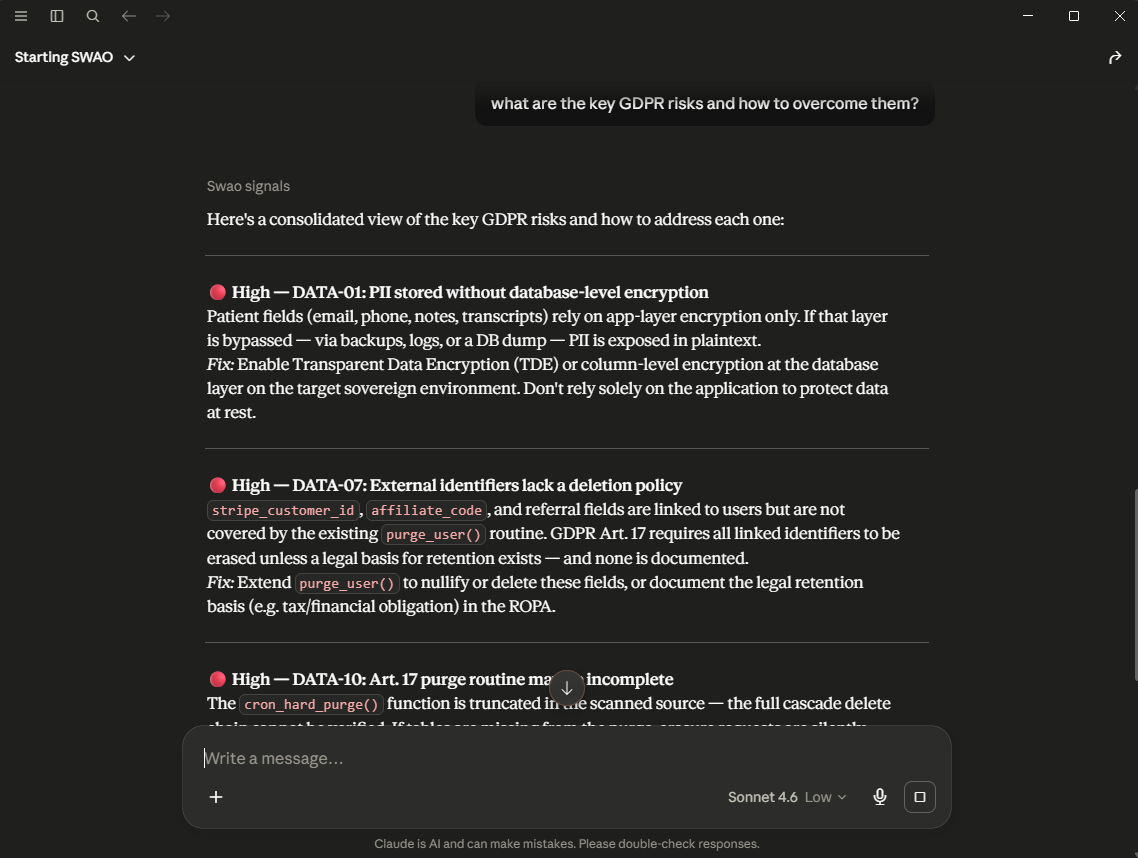 Once connected, the client answers questions from the workspace signals. Here Claude Desktop lists the key GDPR risks of the Sovereign Health demo application with their signal IDs.
7. Troubleshooting
7.1 Tools do not appear after restart
Check the MCP server log. On Windows Store installation:
%LOCALAPPDATA%\Packages\Claude_pzs8sxrjxfjjc\LocalCache\Roaming\Claude\logs\mcp-server-SWAO.logOn macOS:
~/Library/Logs/Claude/mcp-server-SWAO.logA successful startup ends with:
Server started and connected successfullyfollowed by a tools/list exchange that lists the tools of the active profile.
7.2 "command not found" or spawn error
Binary mode: confirm the path to swao-enterprise-win-x64.exe / swao-macos is correct and the file exists. Run it directly in a terminal first (Section 2).
Source mode: use the full absolute path to node. Bare node in the command field only works if the client inherits a PATH that contains it, which is not guaranteed on any platform. Find the path with where node (Windows) or which node (macOS/Linux).
7.3 Binary exits immediately with no error
This can happen if the binary is in Downloads or another folder with restricted execution policy. Move it to a permanent location (e.g. C:\tools\swao\) and try again. On macOS, you may need to clear the quarantine flag: xattr -d com.apple.quarantine /usr/local/bin/swao.
7.4 Build errors or missing dist/index.js (source mode only)
Rebuild from packages/swao/:
npx tsc --project tsconfig.jsonFix any TypeScript errors before retrying.
7.5 Server starts but tools time out
The SWAO CLI spawns subprocesses for each tool call. If swao_assess or swao_report time out, the most common cause is a missing or unreachable LLM provider. Run swao_health_check first to check connectivity, then set credentials via swao credential set in a terminal.
7.6 JSON parse error in config file
The config file must be valid JSON. Common mistakes: trailing commas, single quotes, missing comma between an existing block and the new mcpServers block. Validate with any JSON linter, or with:
node -e "JSON.parse(require('fs').readFileSync('<path-to-config>', 'utf8'))"No output means the file is valid.
8. Rebuilding after source changes (source mode only)
Any change to the MCP server or files it imports requires a rebuild:
cd packages/swao
npx tsc --project tsconfig.json
After rebuilding, fully restart the client. MCP servers are launched once at client startup; they are not reloaded on reconnect.